This guide builds a working Godot in-game shop: a screen that lists coin bundles and items, shows what each costs in real money, sells for coins and for real money, and keeps the balance on screen right. It uses PowerUp's Godot SDK, but the rules it follows (prices from the server, real prices beside coin prices, badges and countdowns only when they're true) are worth keeping whatever you build on. The virtual currency page explains why they matter.
What you need
- Godot 4. The SDK is plain GDScript, built and tested on Godot 4.7.
- The PowerUp addon in
addons/powerup/, switched on under Project Settings → Plugins. That registers thePowerUpautoload. - A sandbox key and your API URL, both in the console under Integrations → SDK. The SDK isn't public yet: studios get it with early access.
- A registered player. Getting started covers setting up the SDK and registering one.
Build with the sandbox key: no real money moves. Every call below returns a Dictionary with ok, and a failure
carries a code to branch on and, when the server answered, its details.
The scene
One Control with a few children, each marked as a unique name so the script can reach it with %:
Balance, aLabelfor the coin balanceOfferGridandItemGrid, twoGridContainers: products sold for money, and items sold for coinsLimitNoticeandStatus, twoLabelsPaySheet, a panel withPayButtonand a hiddenContinueHerebutton, for web checkout
Step 1: load the wallet and the storefront
The storefront is everything on sale to this player right now, already filtered by platform, game version and
sale window, with the age and spending rules applied. fetch_home() loads the lobby in one call and fires
wallet_changed, so the balance fills in on its own.
extends Control

var _usd_per_coin := 0.0

func _ready() -> void:
    PowerUp.wallet_changed.connect(_on_wallet_changed)
    %PayButton.pressed.connect(_on_pay_pressed)
    await refresh()

func refresh() -> void:
    await PowerUp.fetch_home()                     # fires wallet_changed
    var store: Dictionary = await PowerUp.fetch_storefront()
    if not store.ok:
        %Status.text = "The shop is unavailable right now."
        return
    _render_offers(store.storefront)
    await _render_items()
    await PowerUp.badges_seen("store")             # the shop was opened: clear its lobby badge
store.storefront.offers lists every live product: coin bundles, packs, items, passes and subscriptions. Each offer
carries its key, name, price, the coins and items it grants, its end time if it has one, and whether this player
can buy it (purchasable, with notPurchasableReason when not).
Step 2, the quick way: PowerUpStorefront
If you only want to see a store, put a PowerUpStorefront node in a test scene and call load_offers(). It fetches the
storefront, builds a button per offer and shows the monthly spending notice for younger players.
@onready var storefront: PowerUpStorefront = %Storefront

func _ready() -> void:
    storefront.offer_purchased.connect(func(_result: Dictionary) -> void: %Status.text = "Thanks!")
    storefront.offer_failed.connect(func(reason: String) -> void: %Status.text = reason)
    await storefront.load_offers()
Its buy button uses the sandbox purchase, which only works with sandbox keys. For real money, build the grid yourself, which takes a few more lines.
Step 3: your own grid with PowerUpOfferButton
PowerUpOfferButton is a Button that draws one offer through the disclosure guards. Give it the offer and
connect offer_pressed:
func _render_offers(storefront: Dictionary) -> void:
    for child in %OfferGrid.get_children():
        child.queue_free()
    for offer: Dictionary in storefront.get("offers", []):
        var button := PowerUpOfferButton.new()
        button.configure(offer)
        button.offer_pressed.connect(_on_offer_pressed)
        %OfferGrid.add_child(button)
    var limit := PowerUpDisclosure.spend_limit_notice(storefront)
    %LimitNotice.text = limit
    %LimitNotice.visible = limit != ""
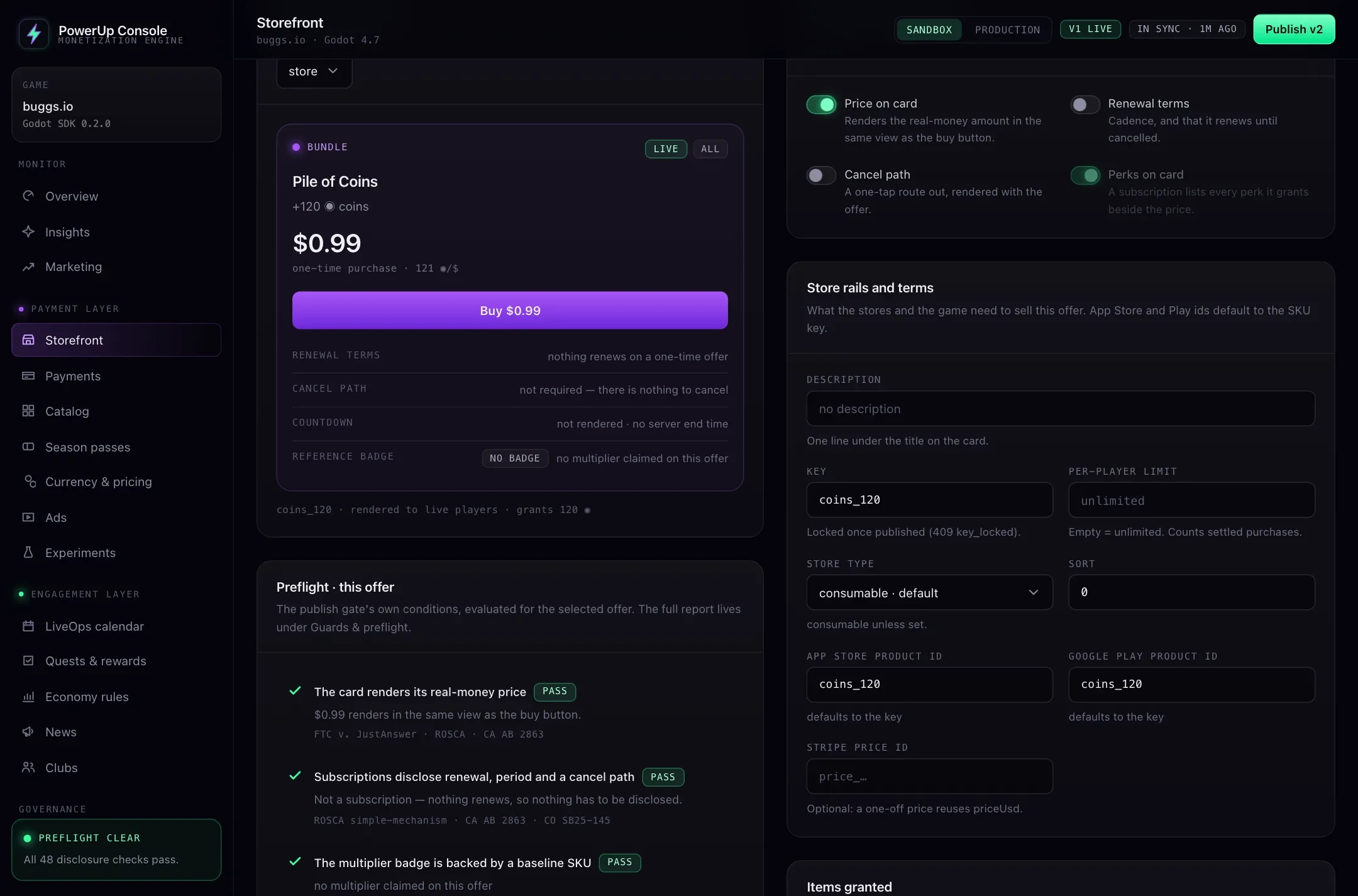
Each button writes its own label: the name, the price (or "Price unavailable"), the coins with their real-money value beside them, a value multiplier only when the server verified it, "Ends in 2h 5m" only when the offer has an end time, and a subscription's renewal terms and how to cancel. When the offer can't be bought, the button says why ("Owned", "Monthly spending limit reached") and disables itself. The countdown runs on the server's clock, so a player who moves their device clock can't stretch it. The button shows the US dollar price, which is what web and desktop players pay. On phones, draw your own card with the store's local price (next step).
Step 4: drawing your own card with the guards
Want your own card design? Build it from PowerUpDisclosure, the static functions the button uses. Each one
returns an empty string when the thing may not be shown, so the card can't say something the server didn't back.
func _fill_card(card: Control, offer: Dictionary) -> void:
    card.get_node("%Title").text = str(offer.get("name", ""))

    var price := PowerUpDisclosure.display_price(offer)          # "" when the card has no price
    card.get_node("%Price").text = price if price != "" else "Price unavailable"
    card.get_node("%Coins").text = PowerUpDisclosure.currency_line(offer)   # "120 coins  (≈ $0.99)"

    var badge := PowerUpDisclosure.badge_text(offer)             # "" unless the server verified it
    card.get_node("%Badge").text = badge
    card.get_node("%Badge").visible = badge != ""

    var left := PowerUp.seconds_until(offer.get("endsAt"))       # -1: no end time, so no countdown
    card.get_node("%Countdown").visible = left > 0

    var blocked := PowerUpDisclosure.blocking_reason(offer)      # why it can't be bought, or ""
    card.get_node("%Buy").disabled = blocked != ""
    card.get_node("%Buy").text = blocked if blocked != "" else "Buy for " + price
Three rules sit behind those calls:
- Real price beside coin price.
currency_line()puts the coins' value at your disclosed rate right next to the coin amount, not in a tooltip. - Badges only when verified. A "1.2× value" badge needs a baseline bundle that is live and sold on the same platform. If a price change would make the claim untrue, publishing fails until you fix it.
- Countdowns only with an end time. No
endsAt, no timer. PowerUp's publish checks also fail a sale whose end date was pushed back twice or more in 30 days, because that's a timer that resets rather than ends.
On iOS and Android, players should see the store's own local price. Pass what the store returned to
PowerUpDisclosure.store_price(offer, store_prices), hand the result to display_price() and blocking_reason()
as their second argument, and hide offers the store didn't return with store_has_product(). The
iOS and Android purchase guide wires up the store plugins.
Step 5: items for coins
Items sold for coins live in the catalog. An item has a price while it can be bought for coins, and owned once
the player has it by any route.
func _render_items() -> void:
    for child in %ItemGrid.get_children():
        child.queue_free()
    var result: Dictionary = await PowerUp.fetch_catalog("all")
    if not result.ok:
        return
    for item: Dictionary in result.catalog.items:
        var price: Variant = item.get("price")
        if item.get("owned", false) or not (price is Dictionary):
            continue                                   # owned already, or not sold for coins now
        var coins := int((price as Dictionary).get("coins", 0))
        var button := Button.new()
        button.text = "%s\n%s" % [item.get("name", ""), _coin_price_text(coins)]
        button.pressed.connect(_buy_item.bind(str(item.key), coins))
        %ItemGrid.add_child(button)

func _coin_price_text(coins: int) -> String:
    var text := PowerUpDisclosure.coins_text(coins)    # "300 coins"
    if _usd_per_coin > 0.0:
        text += "  (≈ $%.2f)" % (coins * _usd_per_coin)
    return text
The dollar figure comes from the rate in the wallet, which you set in the console. Base it on your smallest bundle, the price with no bulk discount. That matches the EU consumer protection authorities' key principles on in-game virtual currencies (21 March 2025), which ask for the real-money price worked out without quantity discounts.
Step 6: buying with coins
buy_item() takes the price the player saw. If the price changed since the screen loaded, the server refuses
instead of charging a different amount. Keep one retry key per tap, so a tap retried after a dropped connection
can't charge twice.
var _retry_keys := {}   # item key -> the retry key for this tap

func _buy_item(item_key: String, coins: int) -> void:
    if not _retry_keys.has(item_key):
        _retry_keys[item_key] = PowerUp.new_idempotency_key()
    var result: Dictionary = await PowerUp.buy_item(item_key, coins, _retry_keys[item_key])
    if result.get("code", "") != "transport_error":
        _retry_keys.erase(item_key)                    # the server answered: a new tap gets a new key
    if result.ok:
        %Status.text = "Added to your collection."
        await _render_items()
        return
    var details: Dictionary = result.get("details", {})
    match result.code:
        "insufficient_coins":
            %Status.text = "You need %d more coins." % (int(details.needed) - int(details.balance))
        "price_changed":
            %Status.text = "The price is now %d coins." % int(details.priceCoins)
            await _render_items()
        "wallet_in_debt":
            %Status.text = "A refund took back coins you'd spent. New coins pay that back first."
        "already_owned":
            %Status.text = "You already have this."
        _:
            %Status.text = "Not available right now."
wallet_changed fires after a successful buy, so the balance updates without another request. The
wallet_in_debt case is real: when a store refunds a coin purchase after the player spent those coins, the
coins are owed back, and spending waits until new coins have repaid them.
Step 7: buying with real money
Each offer says how it's paid for on this device: rail is stripe on web and desktop, and apple or google
on phones. Send the tap there.
func _on_offer_pressed(offer: Dictionary) -> void:
    match str(offer.get("rail", "")):
        "stripe":
            await _open_pay_sheet(offer)
        "apple", "google":
            await _buy_in_store(offer)
        _:
            %Status.text = "This can't be bought on this device."
Web and desktop: Stripe Checkout
Browsers only allow a popup during the tap itself. So create the checkout when the sheet opens, and open it in the
Pay button's handler with no await before it.
var _checkout: Dictionary = {}
var _offer: Dictionary = {}

func _open_pay_sheet(offer: Dictionary) -> void:
    _offer = offer
    %PaySheet.show()
    %PayButton.disabled = true
    %PayButton.text = "Preparing…"
    var started: Dictionary = await PowerUp.start_checkout(str(offer.key))
    if not started.ok:
        %PaySheet.hide()
        %Status.text = PowerUpDisclosure.blocking_text(started.code)
        return
    _checkout = started.checkout
    %PayButton.text = "Pay " + PowerUpDisclosure.display_price(offer)
    %PayButton.disabled = false

func _on_pay_pressed() -> void:
    if not PowerUp.open_checkout(_checkout):         # false: a popup blocker said no
        %ContinueHere.show()                         # its button: _on_continue_here_pressed()
        return
    await _wait_for_payment(str(_checkout.checkoutId))

# A popup checkout comes back to PowerUp's own page, not to the game, so "Continue in this tab" starts a
# redirect checkout instead. Leaving the page needs no click permission, so the await is fine. At boot,
# PowerUp.checkout_return_id() hands back its id: poll that one.
func _on_continue_here_pressed() -> void:
    var redirect: Dictionary = await PowerUp.start_checkout(str(_offer.key), "redirect")
    if redirect.ok:
        PowerUp.open_checkout(redirect.checkout)

# Poll while the sheet is open: a session lasts 30 minutes and then turns "expired" by itself.
func _wait_for_payment(checkout_id: String) -> void:
    var attempt := 0
    while %PaySheet.visible:
        await get_tree().create_timer(PowerUp.checkout_poll_delay(attempt)).timeout
        attempt += 1
        var status: Dictionary = await PowerUp.checkout_status(checkout_id)
        if not status.ok:
            continue
        match str(status.checkout.status):
            "completed":                             # coins are in: wallet_changed already fired
                %PaySheet.hide()
                await refresh()
                return
            "expired", "failed":
                %Status.text = "The payment didn't go through. Try again?"
                return
The Stripe checkout guide covers the rest: checking again when the game regains focus, and picking up a checkout after "Continue in this tab" reloads the page.
iOS and Android: the store sheet
On phones, ask PowerUp for a purchase intent first. That runs the age, consent and spending checks before the player pays. Then open the store sheet and post what the store returned.
func _buy_in_store(offer: Dictionary) -> void:
    var intent: Dictionary = await PowerUp.create_purchase_intent(str(offer.key))
    if not intent.ok:
        %Status.text = PowerUpDisclosure.blocking_text(intent.code)
        return
    # Open the App Store or Google Play sheet for intent.intent.productId with your billing
    # plugin. Give Play Billing intent.intent.obfuscatedAccountId (StoreKit: appAccountToken),
    # then post what the store returned, for example on Android:
    #   await PowerUp.submit_receipt("google", {"purchaseToken": token,
    #       "productId": intent.intent.productId, "intentId": intent.intent.intentId})
Never add coins on the client when the store sheet closes. Wait for submit_receipt(): PowerUp checks the receipt,
credits the wallet, and wallet_changed fires. On Android, don't acknowledge or consume the purchase in the game,
because PowerUp does it. On iOS, finish the transaction only when the result says finish_transaction.
Step 8: keep the balance in sync
Everything that moves coins fires wallet_changed: loading the lobby, buying an item, a finished checkout, a
verified receipt, claiming a free offer or a quest reward. One handler keeps the label right:
func _on_wallet_changed(wallet: Dictionary) -> void:
    var coins: Variant = wallet.get("coins")
    if not (coins is Dictionary):
        return                                         # a game with no coin currency
    var rate: Variant = coins.get("usdRate")
    _usd_per_coin = float(rate) if rate != null else 0.0
    %Balance.text = PowerUpDisclosure.thousands(int(coins.get("balance", 0)))
coins.inPlay is what's held for a match in progress, if your game uses match purses. The sandbox purchase doesn't
fire the signal, so refresh after a sandbox buy.
Before you ship
- Prices come from the storefront and the catalog. Nothing is hard-coded in the build.
- Every coin amount for sale shows its real-money value beside it.
- Badges and countdowns go through
PowerUpDisclosureorPowerUpOfferButton. - Coin buys send the price the player saw, with one retry key per tap.
- Coins appear only after the server says so.
- If
storefront.purchaseBlockedisage_gate_required, ask the player's birth year at a calm moment and callPowerUp.set_birth_year().
For tests without a network, PowerUp.set_transport() sends every request to a function of yours instead of
over HTTP, and the addon's demo/ folder holds recorded answers for the routes a lobby needs. The storefront docs list every field this guide reads.