This guide sets up Godot IAP on iOS and Android from start to finish: the products in the PowerUp console and in each store, the Google Play Billing and StoreKit 2 plugins your game needs, the GDScript that buys and restores, and how to test without spending money. The plugin parts apply to any Godot 4 game. The server parts use PowerUp, which checks every purchase before the player gets anything (why that matters).
Step 1: Give each product its store ids
In PowerUp you set a product up once and pick the platforms it sells on. On iOS it sells through the
App Store and on Android through Google Play, and the storefront tells the game which with each offer's
rail (apple or google) and productId.
Store product ids default to the product's key. To use other ids, set them in the console under Payments → Product ids. PowerUp's check accepts lowercase letters, numbers, underscores and periods for Google Play, and flags any id that two products share, before you publish. A Google Play subscription also needs its base plan id.
Unless you set it yourself, PowerUp works out each product's store type: coin bundles are consumables, packs, items and passes are non-consumables, and subscriptions are auto-renewable. Publish when the ids are right, because the game only ever sees published changes.
Step 2: Create the same products in each store
App Store Connect
- Create each in-app purchase with exactly the product id PowerUp uses. Put subscriptions in a subscription group.
- Leave Family Sharing off. PowerUp ignores family-shared purchases.
- Set App Store Server Notifications to version 2 and point them at your game's App Store webhook on
PowerUp, so refunds and renewals reach the server. Take the Stripe webhook address from the console's
Payments page and put
applein place ofstripe. - In the PowerUp console, open Payments → App Store and enter your bundle id and your App Apple ID (App Store Connect → App Information → Apple ID). Without the App Apple ID, only sandbox transactions verify.
Google Play Console
- Upload a build that includes the billing plugin first. Google requires a published version with the Play Billing Library before you can set up products, and the internal test track counts.
- Create the one-time products and subscriptions, with their base plans, using PowerUp's ids.
- In Google Cloud, turn on the Google Play Android Developer API and create a service account. Give it access to your app in Play Console with the View financial data and Manage orders and subscriptions permissions, then paste its JSON key and your package name into the PowerUp console under Payments → Google Play.
- Set up real-time developer notifications:
a Pub/Sub topic that Google's notification account can publish to, a push subscription to your game's
Google Play webhook on PowerUp (the Stripe webhook address from the Payments page, with
googlein place ofstripe), and in Play Console the option that sends notifications for one-time products as well as subscriptions, so one-time purchases and refunds both arrive. Turn on authentication for the push subscription and enter its audience and service account under Payments → Google Play, so PowerUp can tell your pushes from anyone else's.
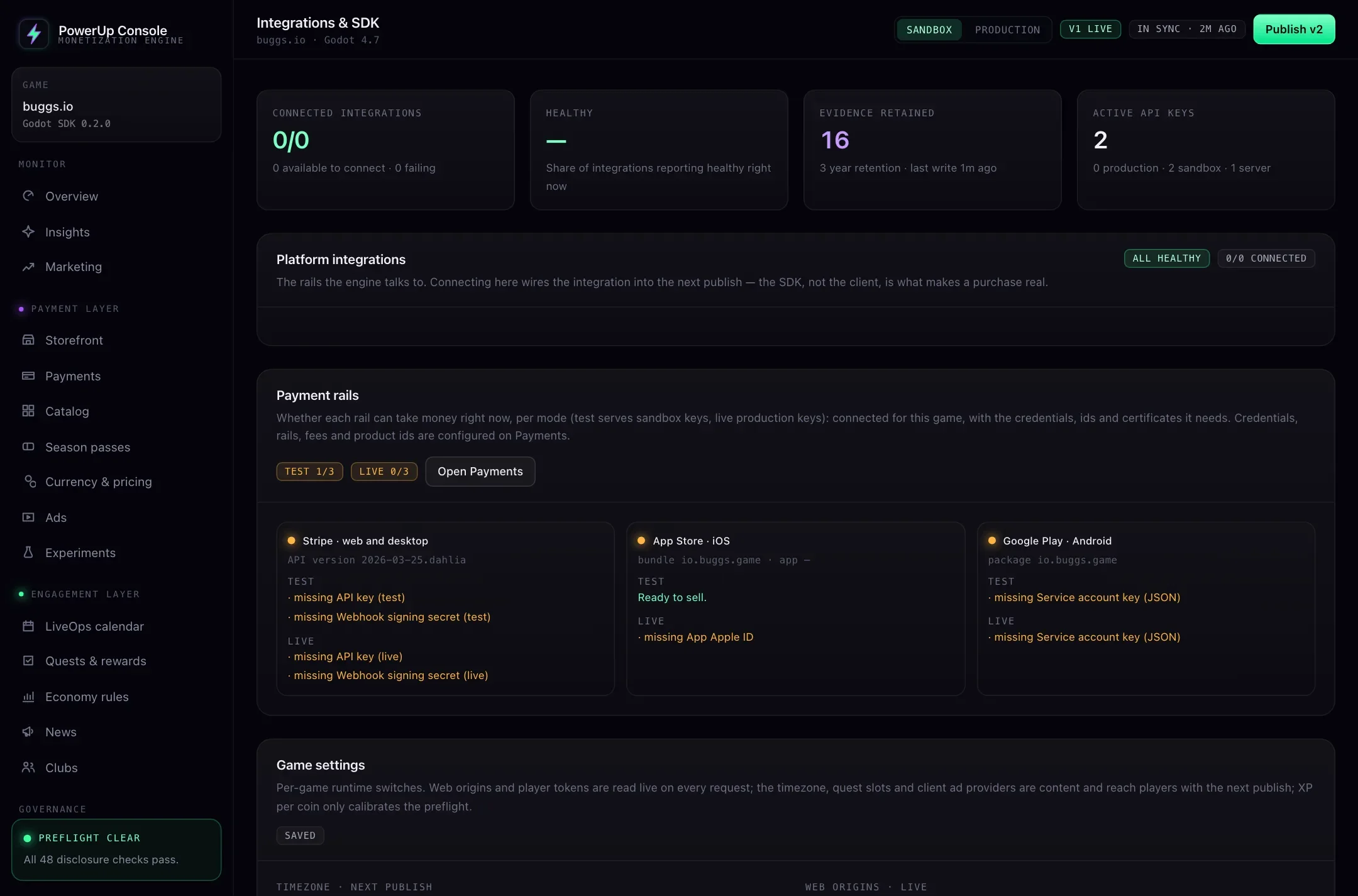
The Integrations page shows what each store still needs, separately for test and live:
Step 3: Add the billing plugins
The PowerUp SDK talks to PowerUp. The stores need native plugins, one per platform, and two rules apply to both:
- Load each plugin only on its own platform, and never use its class names as types in your scripts. Then your web and desktop builds still parse without it.
- Leave each plugin's folder out of the other platforms' export presets.
Android: GodotGooglePlayBilling
GodotGooglePlayBilling is Godot's first-party plugin for Google Play Billing, for Godot 4.2 and later. As of October 2026 its latest release for Godot 4 is 3.3.0 (July 2026), built on Billing Library 9.1.0.
- Download the latest release and copy it to
res://addons/GodotGooglePlayBilling/. - Enable it under Project → Project Settings → Plugins.
- In the Android export preset, turn on Gradle build (install the Android build template if you haven't) and export an AAB for Play.
iOS: a StoreKit 2 plugin
PowerUp verifies StoreKit 2 signed transactions, so the iOS plugin has to hand you one. Godot's own iOS plugin set includes an in-app store plugin, but it uses the original StoreKit API. We use GodotApplePlugins (MIT): its StoreKit part is StoreKit 2, it takes an app account token, it gives you each transaction's signed form, and it never finishes a transaction on its own.
- Download a release (from GitHub or the Godot Asset Library) and copy its contents into
addons/. You only need its StoreKit library. - Set the iOS export's minimum iOS version to 17.0, which the plugin needs.
- Optional: copy it into the project only when you export for iOS, as we do, so its macOS library
never loads in the editor or in headless test runs. The plugin exposes StoreKit's properties in
snake_case (
product_id,jws_representation), which is what the code below uses.
What about godot-iap?
godot-iap is a community plugin built on the OpenIAP spec that covers both stores with one API (MIT; Godot 4.3 and later, iOS 17 and Android API 24 and later). The code below is written for the two plugins above. If you prefer godot-iap, check that it lets you attach the account token to a purchase and gives you the signed App Store transaction and the Play purchase token, and make sure nothing in your game acknowledges or consumes Play purchases, because PowerUp does that on the server.
Step 4: Write the purchase flow
Every purchase takes the same four steps on both stores:
PowerUp.create_purchase_intent(offer.key)runs the purchase rules before the store sheet opens and returns the product id plus an account token. An intent lasts an hour.- The plugin opens the sheet with the token attached: StoreKit's app account token, or Play's obfuscated account id.
PowerUp.submit_receipt()posts the result with the intent id, so the player gets what the card showed when they tapped it, even if you publish a change while the sheet is open.- On iOS, call
finish()only when the answer'sfinish_transactionis true. On Android, never acknowledge or consume in the game.
In both scripts, show_message() stands for your own UI.
Android
# play_store.gd: Google Play purchases, settled by PowerUp. Does nothing outside Android.
extends Node

const BILLING_CLIENT := "res://addons/GodotGooglePlayBilling/BillingClient.gd"

var store_prices := {}        # Play product id -> its price details, for the store cards
var _play: Variant = null     # the plugin's script, loaded by path and never typed
var _billing: Variant = null  # its BillingClient node
var _offers := {}             # Play product id -> PowerUp offer
var _options := {}            # one-time product id -> the purchase option to buy
var _intents := {}            # Play product id -> intent id of the purchase in flight

func _ready() -> void:
    if OS.get_name() != "Android" or not ResourceLoader.exists(BILLING_CLIENT):
        return
    _play = load(BILLING_CLIENT)
    _billing = _play.new()
    add_child(_billing)
    _billing.connected.connect(_on_connected)
    _billing.query_product_details_response.connect(_on_product_details)
    _billing.on_purchase_updated.connect(_on_purchase_updated)
    _billing.start_connection()

func _on_connected() -> void:
    var store: Dictionary = await PowerUp.fetch_storefront()
    if not store.ok:
        return
    var inapp := PackedStringArray()
    var subs := PackedStringArray()
    for offer: Dictionary in store.storefront.offers:
        if offer.get("rail") != "google":
            continue
        _offers[offer.productId] = offer
        if offer.storeType == "auto_renewable":
            subs.append(offer.productId)
        else:
            inapp.append(offer.productId)
    # Play only sells products it has returned details for.
    if not inapp.is_empty():
        _billing.query_product_details(inapp, _play.ProductType.INAPP)
    if not subs.is_empty():
        _billing.query_product_details(subs, _play.ProductType.SUBS)
    # Purchases nobody settled yet (a crash, a lost connection) are still listed here.
    var owned: Array = await _owned()
    for entry: Dictionary in owned:
        if not entry.purchase.is_acknowledged:
            await _settle(entry.purchase, entry.type)

func _on_product_details(response: Dictionary) -> void:
    for details: Dictionary in _list(response, "product_details"):
        var id: String = details.product_id
        if details.product_type == "subs":
            # The base plan the offer names; its recurring price is the last phase.
            for plan: Dictionary in _list(details, "subscription_offer_details"):
                if not plan.get("offer_id") and plan.base_plan_id == _offers.get(id, {}).get("basePlanId"):
                    store_prices[id] = plan.pricing_phases[-1]
        else:
            # Billing Library 8 and later sell one-time products through purchase
            # options: buy the base option (no offer id) and show its price.
            for option: Dictionary in _list(details, "one_time_purchase_offer_details_list"):
                if not option.get("offer_id"):
                    store_prices[id] = option  # formatted_price, price_amount_micros
                    _options[id] = option.purchase_option_id
                    break

func buy(offer: Dictionary) -> void:
    if not store_prices.has(offer.productId):
        return  # Play didn't return this product: hide the offer
    var intent: Dictionary = await PowerUp.create_purchase_intent(offer.key)
    if not intent.ok:
        show_message(PowerUpDisclosure.blocking_text(intent.code))
        return
    var i: Dictionary = intent.intent
    _intents[i.productId] = i.intentId
    _billing.set_obfuscated_account_id(i.obfuscatedAccountId)  # before purchase()
    if i.productType == "subscription":
        _billing.purchase_subscription(i.productId, i.basePlanId)
    else:
        _billing.purchase(i.productId, _options.get(i.productId, ""))

func _on_purchase_updated(response: Dictionary) -> void:
    if int(response.response_code) != _play.BillingResponseCode.OK:
        return  # cancelled or failed: nothing was bought
    for p: Dictionary in _list(response, "purchases"):
        var offer: Dictionary = _offers.get(p.product_ids[0], {})
        await _settle(p, "subs" if offer.get("storeType") == "auto_renewable" else "inapp")

func _settle(p: Dictionary, type: String) -> void:
    if int(p.purchase_state) != _play.PurchaseState.PURCHASED:
        show_message(PowerUpDisclosure.RECEIPT_LINES["pending"])  # not paid yet
        return
    var product: String = p.product_ids[0]
    var r: Dictionary = await PowerUp.submit_receipt("google", {
        "purchaseToken": p.purchase_token, "productId": product,
        "productType": type, "intentId": _intents.get(product, ""),
    })
    if r.ok:
        _intents.erase(product)
        show_message(PowerUpDisclosure.receipt_line(r.receipt))
    # Never call acknowledge_purchase() or consume_purchase() here: PowerUp does both.

## What Play says this Google account owns right now, with each purchase's type.
## One query at a time: an answer doesn't say which type it was for.
func _owned() -> Array:
    var out: Array = []
    for type: int in [_play.ProductType.INAPP, _play.ProductType.SUBS]:
        _billing.query_purchases(type)
        var response: Dictionary = await _billing.query_purchases_response
        for p: Dictionary in _list(response, "purchases"):
            out.append({"purchase": p, "type": "subs" if type == _play.ProductType.SUBS else "inapp"})
    return out

## The plugin sends null, not an empty Array, for a list it doesn't have.
func _list(d: Dictionary, key: String) -> Array:
    var v: Variant = d.get(key)
    return v if v is Array else []
Google's integration guide says to grant only purchases in the purchased state, and Play blocks purchases whose account id holds personal data such as an email. The account id PowerUp hands you is the player's id in your game, so make that a random id of 64 characters or fewer, never a username or an email.
iOS
# app_store.gd: App Store purchases (StoreKit 2), settled by PowerUp. Does nothing outside iOS.
extends Node

var store_prices := {}    # App Store product id -> display_price and price, for the store cards
var _sk: Variant = null   # StoreKitManager, a GDExtension class: never typed
var _products := {}       # product id -> the plugin's StoreProduct
var _intents := {}        # product id -> intent id of the purchase in flight
var _restoring := false   # restore() posts the entitlements itself

func _ready() -> void:
    if OS.get_name() != "iOS" or not ClassDB.class_exists("StoreKitManager"):
        return
    _sk = ClassDB.instantiate("StoreKitManager")
    _sk.products_request_completed.connect(_on_products)
    _sk.purchase_completed.connect(_on_purchase_completed)
    # Renewals, Ask to Buy approvals, offer codes and transactions left unfinished last time.
    _sk.transaction_updated.connect(_on_transaction_updated)
    _sk.start()
    var store: Dictionary = await PowerUp.fetch_storefront()
    if not store.ok:
        return
    var ids := PackedStringArray()
    for offer: Dictionary in store.storefront.offers:
        if offer.get("rail") == "apple":
            ids.append(offer.productId)
    _sk.request_products(ids)

func _on_products(products: Array, _status: int) -> void:
    for p: Variant in products:
        if p != null:
            _products[p.product_id] = p
            store_prices[p.product_id] = {"display_price": p.display_price, "price": p.price}

func buy(offer: Dictionary) -> void:
    var product: Variant = _products.get(offer.productId)
    if product == null:
        return  # the App Store didn't return it: hide this offer
    var intent: Dictionary = await PowerUp.create_purchase_intent(offer.key)
    if not intent.ok:
        show_message(PowerUpDisclosure.blocking_text(intent.code))
        return
    _intents[offer.productId] = intent.intent.intentId
    var token: Variant = ClassDB.class_call_static(
        "StoreProductPurchaseOption", "app_account_token", intent.intent.appAccountToken)
    _sk.purchase_with_options(product, [token])

func _on_purchase_completed(tx: Variant, _status: int, _message: String) -> void:
    # tx is null when the player cancelled or the purchase is waiting (Ask to Buy).
    # A waiting one arrives later through transaction_updated.
    if tx != null:
        await _settle(tx)

func _on_transaction_updated(tx: Variant) -> void:
    if not _restoring:  # during a restore, every entitlement passes through here too
        await _settle(tx)

func _settle(tx: Variant) -> void:
    if tx == null:
        return
    var r: Dictionary = await PowerUp.submit_receipt("apple", {
        "jws": tx.jws_representation, "intentId": _intents.get(tx.product_id, ""),
    })
    if not r.ok:
        return  # leave it unfinished: StoreKit hands it back on the next launch
    if r.finish_transaction:
        tx.finish()  # only now, after PowerUp has answered
        _intents.erase(tx.product_id)
    show_message(PowerUpDisclosure.receipt_line(r.receipt))
Transactions that arrive with no purchase in this session go through submit_receipt() too, without an
intent id: renewals and Ask to Buy approvals on iOS, and anything Play still lists as unacknowledged on
Android. PowerUp settles them at the product's published terms.
To draw a card, pass the store's price through the SDK so the player sees their own currency:
PowerUpDisclosure.display_price(offer, PowerUpDisclosure.store_price(offer, store_prices)). Hide offers
where PowerUpDisclosure.store_has_product(offer, store_prices) is false. The
in-game shop guide builds the whole screen.
Step 5: Add a Restore Purchases button
Players who reinstall or switch phones expect one. It posts what the store says the player owns, and non-consumables and subscriptions come back. Coins never do.
# play_store.gd, continued
func restore() -> void:
    var purchases: Array = []
    var owned: Array = await _owned()
    for entry: Dictionary in owned:
        var p: Dictionary = entry.purchase
        purchases.append({"purchaseToken": p.purchase_token,
            "productId": p.product_ids[0], "productType": entry.type})
    var r: Dictionary = await PowerUp.restore("google", {"purchases": purchases})
    if r.ok:
        show_message(PowerUpDisclosure.restore_summary(r.restore))
        for line in PowerUpDisclosure.restore_skipped_lines(r.restore):
            show_message(line)
# app_store.gd, continued
func restore() -> void:
    _sk.restore_purchases()  # syncs with the App Store; may ask the player to sign in
    var synced: Array = await _sk.restore_completed  # [status, message]
    if int(synced[0]) != 0:
        return  # cancelled or failed
    _restoring = true
    _sk.fetch_current_entitlements()
    var entitlements: Array = await _sk.current_entitlements_fetch_completed
    _restoring = false
    var signed: Array = []
    for tx: Variant in entitlements:
        signed.append(tx.jws_representation)
    var r: Dictionary = await PowerUp.restore("apple", {"transactions": signed})
    if r.ok:
        show_message(PowerUpDisclosure.restore_summary(r.restore))
        for line in PowerUpDisclosure.restore_skipped_lines(r.restore):
            show_message(line)
One call takes up to 50 purchases, and a player can restore 10 times an hour. A purchase can move to a different PowerUp account at most once a week; the skipped lines say when it can move again.
Step 6: Test without spending money
Sandbox and production keys
With your sandbox key, PowerUp accepts store test purchases from anyone. With a production key it
ignores them (status sandbox_ignored) unless the player is marked as a tester in the console, or the
App Store's App Review switch is on while Apple reviews your build. Test with the sandbox key first, then
once more on a production build with a tester.
iOS
- Create Sandbox Apple Accounts in App Store Connect. Builds you run from Xcode and builds from TestFlight always use the sandbox, and nothing is charged.
- On the device, the Sandbox Apple Account appears under Settings → Developer after your first purchase attempt in a development build. From there you can clear its purchase history to buy a non-consumable again, and change how fast subscriptions renew.
- Product changes in App Store Connect can take up to an hour to reach the sandbox.
Apple's sandbox testing guide covers TestFlight sign-in and the rest.
Android
- Add license testers in Play Console. They pay with test cards: one that always approves, one that always declines, and slow cards that approve or decline after a few minutes, which is how you test a pending purchase.
- License testers can sideload a build as long as its package name matches the app in Play Console.
- Test subscriptions renew fast: a monthly plan every 5 minutes, at most six times.
- A license tester's purchase that nobody acknowledges is refunded within minutes, not three days. If test purchases keep vanishing, the receipt never reached PowerUp.
The details are in Google's testing guide, as of October 2026.
What to try
| Try this | You should see |
|---|---|
| Buy a coin bundle | granted, the coins in the wallet, and on Android the purchase consumed |
| Pay, then close the app before PowerUp answers, and reopen it | The purchase posted again on launch and granted once |
| Android: pay with a slow test card | pending and nothing granted, then granted once it clears |
iOS: add the plugin's simulate_ask_to_buy_in_sandbox purchase option | No transaction until the request is approved, then granted through transaction_updated |
| Buy a non-consumable twice | already_owned from the intent, before any store sheet opens |
| Restore on a fresh install | Items and the subscription back, coins not |
| A test purchase on the production key, as a non-tester | sandbox_ignored and nothing granted |
Next steps
Server-side receipt validation explains every check PowerUp runs on the transactions you post. The payments docs list every result and error code. If you also ship web or desktop builds, web checkout sells the same products through Stripe.